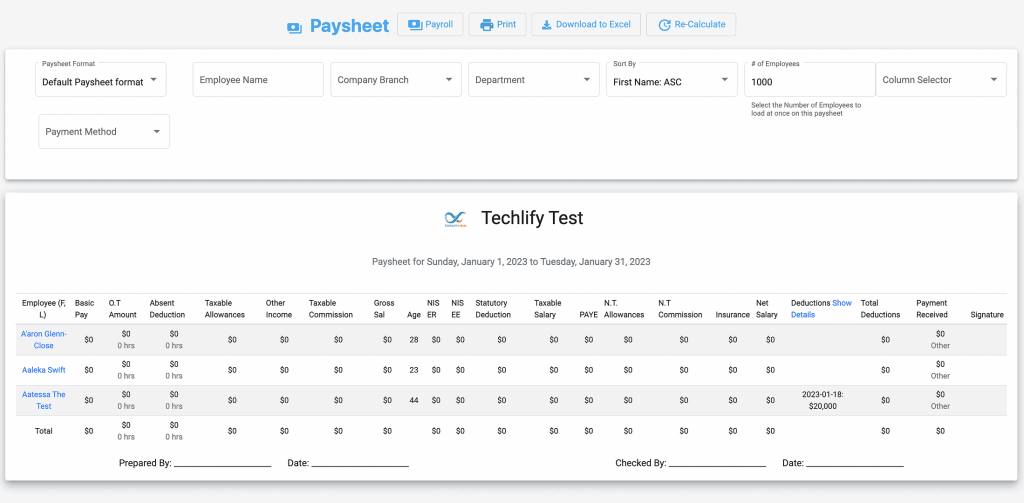

We’ve implemented a new feature, which allows for the creation of a Supplementary Payroll – This saves you from having to update an old payroll, especially if the payroll has already been approved, by allowing the differences in retroactive adjustments to taxes or salaries to be reflected on a new payroll.
Here’s a step-by-step guide to using this feature:
Step 1: Select ‘Supplementary’
After clicking on the “+ Payroll” button, make sure to change it from ‘Standard’ to ‘Supplementary’.

Step 2: Select Parent
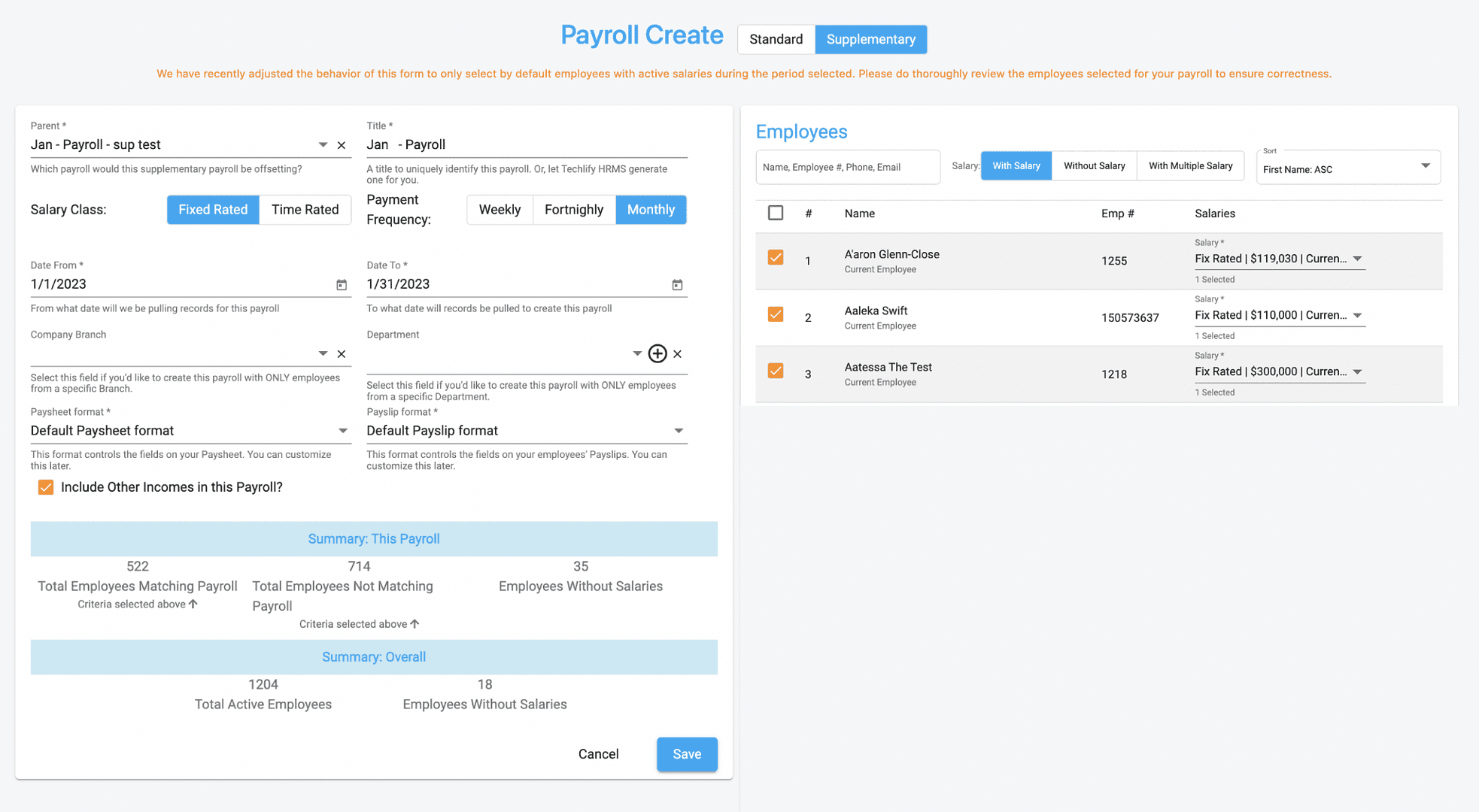
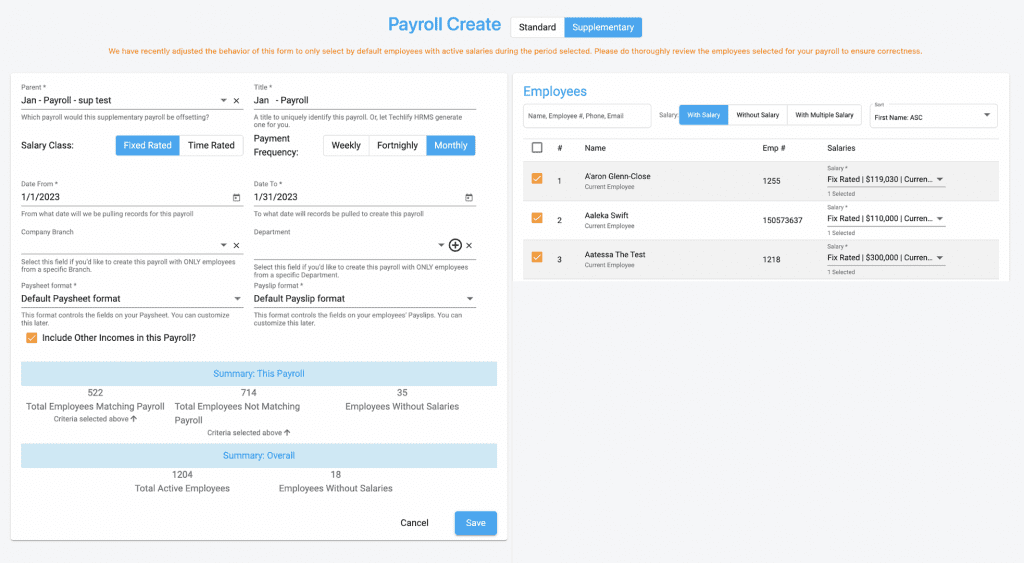
Your screen should now look like the image below, the next step would be to select the ‘Parent’ (The payroll that the adjustment is for), once that is selected the employees for that specific payroll will appear on the right of your screen.
Step 3: Save
Just click the save button and you’re done!
If you would like to verify you can check the paysheet, which should look like the image below.